
For quite some time, I have been trying to describe the latest developments in AI mostly from a practical perspective: how these tools can actually be used in software development, testing, and IT work in general. One of the topics I have already mentioned a few times, including in AI Coding Agents in 2026, is Computer Use.
Several major AI companies are actively developing this capability: OpenAI through Computer Use in Codex and ChatGPT Work, Anthropic through Claude Cowork in its desktop application, and xAI through Grok Bot. Their approaches differ, including where the agent's computer runs, but I see a common direction: enabling agents to take on more of the everyday work we do across applications. Preparing reports, working with spreadsheets, gathering information and moving data between tools are all part of that broader push towards automating office work. Computer Use is one part of this effort, alongside connectors and other programmatic integrations.
I have written before that I tend to be rather sceptical about new AI features, especially when they appear surrounded by the usual wave of excitement. Many AI releases are immediately followed by posts announcing the end of programming, testing, engineering, or work in general. We have seen this pattern many times already. Something new is released, impressive demonstrations appear on X, expectations increase dramatically, and after some time the reality usually turns out to be more nuanced. The feature may still be useful, sometimes very useful, but the distance between the public narrative and everyday engineering work can be considerable.
Computer Use feels almost like the opposite case. In my experience, it is one of the more useful capabilities introduced into modern AI agents, yet it receives surprisingly little attention compared with many much more speculative features. I have been using it in practice and I am impressed by how helpful it can be. It gives the agent access to another part of the workflow that was previously much harder to reach. A coding agent can already inspect repositories, modify files, execute commands, run tests, analyse their output, and iterate over an implementation. With Computer Use, it can also start interacting with graphical applications in a much more direct way.
Before looking at how this works on the desktop, however, it is useful to go back to something I have already discussed several times on this blog: how agents interact with a web browser through Playwright. The browser is a good starting point because it shows quite clearly that an agent does not necessarily need to see an interface in the same way a human does in order to use it effectively.
How Does an Agent Actually See a Web Application?
When we watch an agent controlling a browser, it is very easy to assume that it sees the same thing we see. A browser window is open, buttons are clicked, text is entered, and from the outside the process looks almost human. Underneath, however, a Playwright-driven agent can work with a textual description of the interface. It does not need to continuously analyse screenshots and guess where a particular button is located.
I described this mechanism previously when writing about Playwright MCP, and returned to it in my article about Playwright CLI. Microsoft's Playwright MCP exposes structured accessibility snapshots containing elements, their roles, names and states, together with references the model can use for subsequent actions. Playwright CLI also supports snapshots and element references, allowing the agent to inspect the page and then target a control through a command. This describes those agent-facing workflows; ordinary Playwright test code can also use locators, inspect the DOM and execute JavaScript.
A simplified snapshot might look something like this:
- heading "Sign in" [level=1]
- textbox "Email" [ref=e5]
- textbox "Password" [ref=e7]
- button "Sign in" [ref=e9]
For an LLM, this is a convenient representation. The model receives an explicit description saying that a button called Sign in exists and is available under a particular reference. It can ask Playwright to interact with that element directly, then inspect a fresh snapshot to see the updated state. The references belong to the observed page state; they should not be treated as permanent identifiers for the application.
The accessibility tree is a semantic representation of the interface used by assistive technologies such as screen readers. It describes roles, accessible names and states, rather than reproducing every implementation detail from the DOM. Playwright's ARIA snapshots express accessible structure in a textual format, including information such as heading levels and whether a control is checked or disabled. This is particularly convenient for a language model because it can reason about controls through their meaning.
This has a consequence for testing which is easy to overlook. If we ask an agent operating on these snapshots to test an application, its view of that application is largely semantic. It can notice that an expected button disappeared, that a field has the wrong accessible name or that a checkbox did not change its state. Those observations can support useful functional checks, provided we have told the agent what behaviour to expect. They do not establish that the layout looks correct. A button can move 200 pixels to the left, text can overlap another component, or a modal can render partially outside the viewport while the textual representation still looks perfectly reasonable.
If visual correctness matters, we need to explicitly include screenshots in the work and ask the agent to inspect them. We should also distinguish an agent looking for visual problems from a repeatable visual regression test with approved reference images. Both can be useful, but they provide different evidence. An agent successfully completing a form does not, by itself, tell us how thoroughly it checked the appearance of that form.
In practice, these are complementary ways for an agent to understand the interface. The accessibility snapshot tells it what is present and what those elements mean. A screenshot shows what is rendered. For visual verification, charts, maps or custom-rendered controls, the image becomes much more important. This brings us back to Computer Use: what does the equivalent interaction model look like when the agent starts using desktop applications?
How Does Computer Use Actually Work?
This brings us to Computer Use itself. In Codex, the feature is available on macOS and Windows in supported regions. The starting point is similar to the Playwright workflow described above: the agent needs to understand what is in the application before deciding how to interact with it. On the desktop, it can combine a textual description of accessible controls with a screenshot of the window. One tells it what the controls mean; the other shows how the interface is rendered.
Kyle Jeong explains this architecture in How does Astra’s computer use actually work?. His analysis describes a persistent Node.js session with tools for browser and native desktop interaction. The agent can request text, a screenshot, or both, then execute an action through code. It can target an identified element or use coordinates when appropriate. Afterwards, it observes the application again to check the result. This is an analysis of the implementation, rather than an official API contract, but it provides a useful explanation of how the pieces fit together.
The Codex issue tracker provides some particularly concrete examples. In issue #25178, a Windows 10 user reported that screenshot capture failed while reading accessibility information and sending keyboard input still worked. The report includes separate options for requesting text and screenshots through get_window_state(). With screenshots disabled, the tool returned Notepad’s accessibility tree and focused editor. This illustrates that the textual view is obtained separately from the screenshot; it is not simply text recognised from the image.
That distinction becomes easier to understand with a familiar example. An accessibility description can tell the agent that a button is called Save and whether it is enabled. A screenshot can show that another window covers it or that the surrounding layout has broken. Depending on the task, either observation may be useful, and the agent can combine them. There is no need to assume that screenshots are used only when something goes wrong.
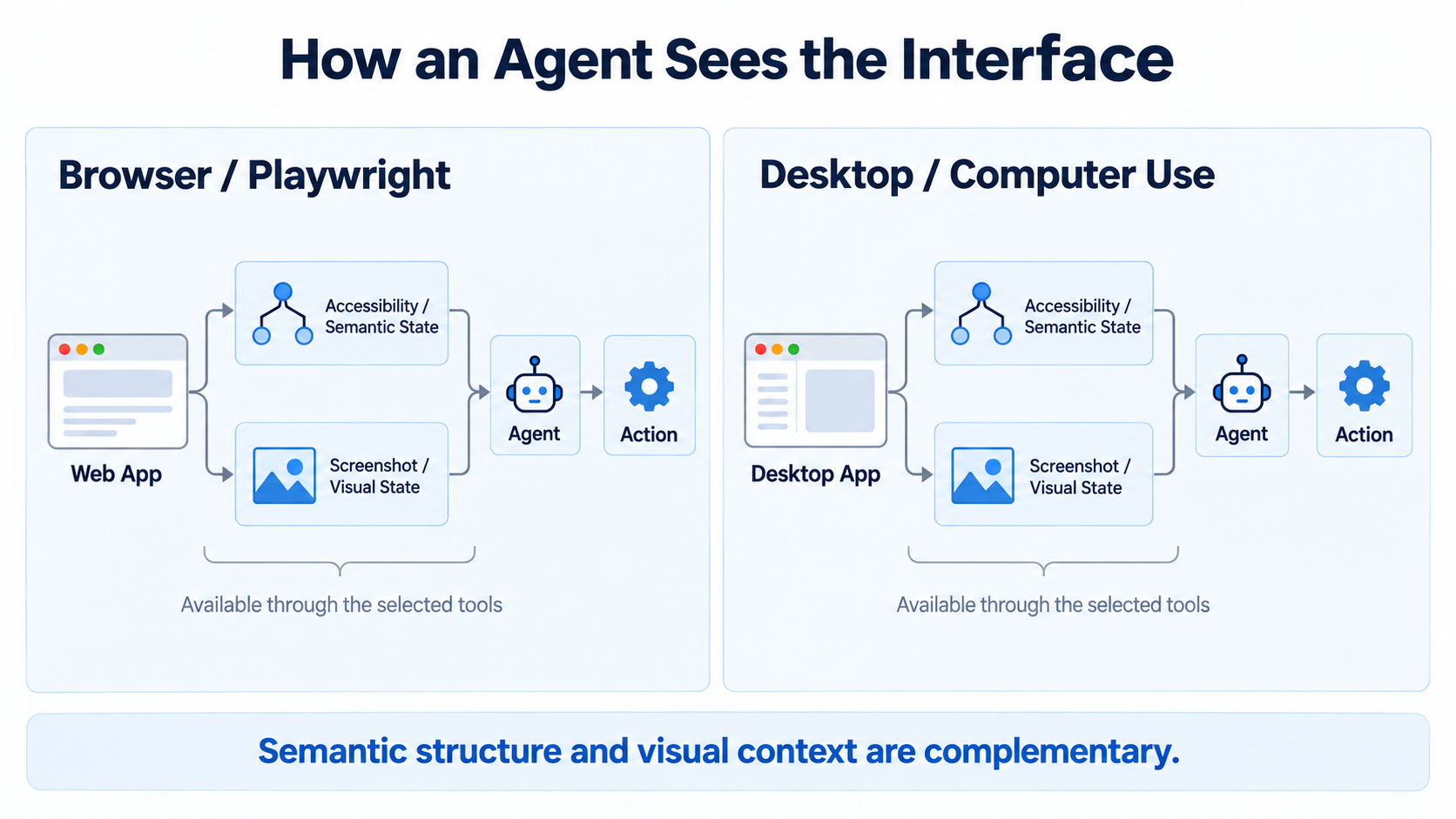
The operating systems already provide much of the foundation for this. Windows has UI Automation, which exposes interface elements, their properties and supported interactions for accessibility and automated testing. macOS offers comparable access through its Accessibility APIs. This is why a desktop application can expose buttons, text fields and menus in a form that a tool can inspect. How much useful information it exposes depends on how the application was built.
A second report, issue #25411, shows why visual information still matters. The reporter could read accessibility information from Microsoft Paint, but described Weixin/WeChat as exposing only a custom rendering container. That gave the agent very little information about the controls visible inside the window. When screenshot capture also failed, it could not use the application effectively. This is a practical example of the two inputs complementing each other: semantic information is useful where the application exposes it, while vision helps with interfaces that offer little accessible structure.
There can also be failures between understanding a control and acting on it. In issue #36603, the reporter described a Chrome folder picker whose Folder field and Select Folder button appeared in the accessibility tree, but clicks were rejected because the helper associated them with a different window from the selected parent. These reports describe particular versions and environments, but they make the broader point quite well: successful desktop interaction depends on the tools and operating system as well as the model.
For me, this makes Computer Use a natural extension of the browser workflows we already know. The agent reads the available interface information, performs an action and checks what happened. The desktop gives it a wider variety of applications to work with, and combining accessibility with screenshots helps it deal with that variety. It also gives application developers another reason to provide meaningful accessible names, roles and states: those details help both assistive technologies and agents understand the interface.
Computer Use for Desktop Testing
The first obvious testing use case is desktop applications themselves. Desktop UI automation has always been more fragmented than browser automation, with different frameworks, operating systems and accessibility implementations. Computer Use can lower the barrier to exploring a running application because the agent can use semantic UI information where available and vision where it needs more context. This makes it useful for exploratory testing, reproducing bugs and checking user flows in applications that do not have a convenient automation interface.
I would still distinguish this from a maintained regression suite. An exploratory session can help us investigate a failure and preserve the steps and evidence. A regression suite needs repeatable setup, clear assertions and results we can interpret across runs. Computer Use gives us another way to investigate behaviour and cover difficult workflows; the fact that an agent completed a journey once does not automatically provide that ongoing regression coverage.
Using Desktop Tools as Part of a Test Workflow
The second use case is using desktop tools as part of a larger testing workflow. Postman and Bruno are good examples. An agent could configure requests, add headers, run calls and inspect responses through the application when the relevant operation is best reached through its UI. The application is a tool in the investigation, rather than necessarily the product under test. This becomes useful when a workflow crosses several tools: Playwright in the browser, a CLI in the terminal, and then a desktop application for the remaining step.
Of course, these tools may also provide collection files, command-line runners or other structured ways to accomplish the same task. If the agent can create or run the collection directly, there may be little reason to click through the editor. The useful question is which interface gives it the access and evidence needed for this particular job. Computer Use extends the available options when part of the workflow still requires a graphical interface.
Filling the Gaps
If an operation can be performed through a suitable API, CLI, SDK or connector, that will usually be easier to automate and verify than a sequence of UI interactions. Computer Use earns its place by covering the remaining steps. There is still plenty of software whose relevant functionality cannot conveniently be reached through the structured integrations available to the agent.
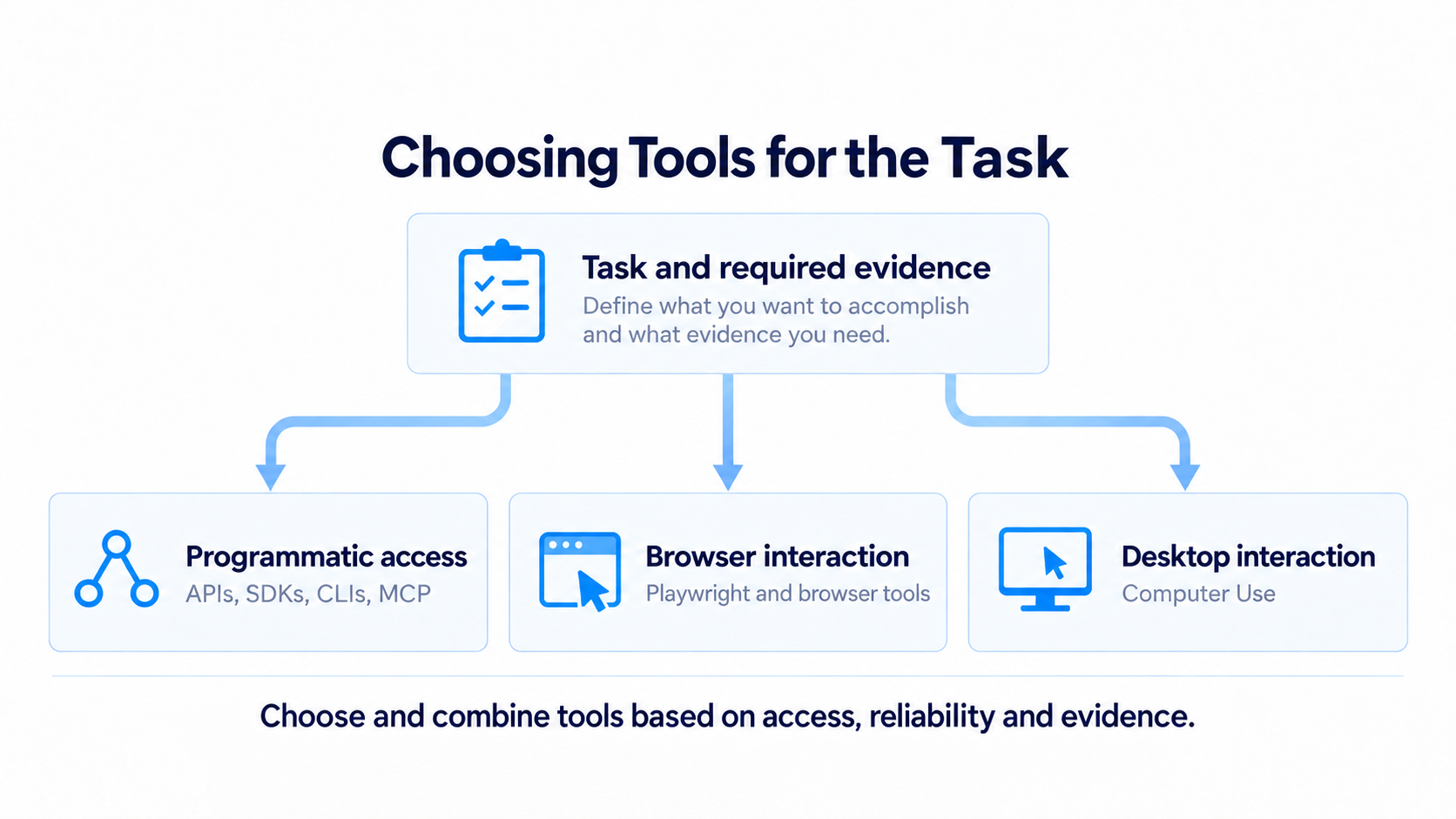
That is why I find this capability so useful. It allows an agent to continue across parts of the software stack that would otherwise require us to take over and operate the interface ourselves. When the same UI workflow becomes frequent, we can consider a dedicated integration. Until then, Computer Use gives us a practical way to bridge the gap. For development and testing work, that alone makes it worth experimenting with.
Comments
Loading comments...